
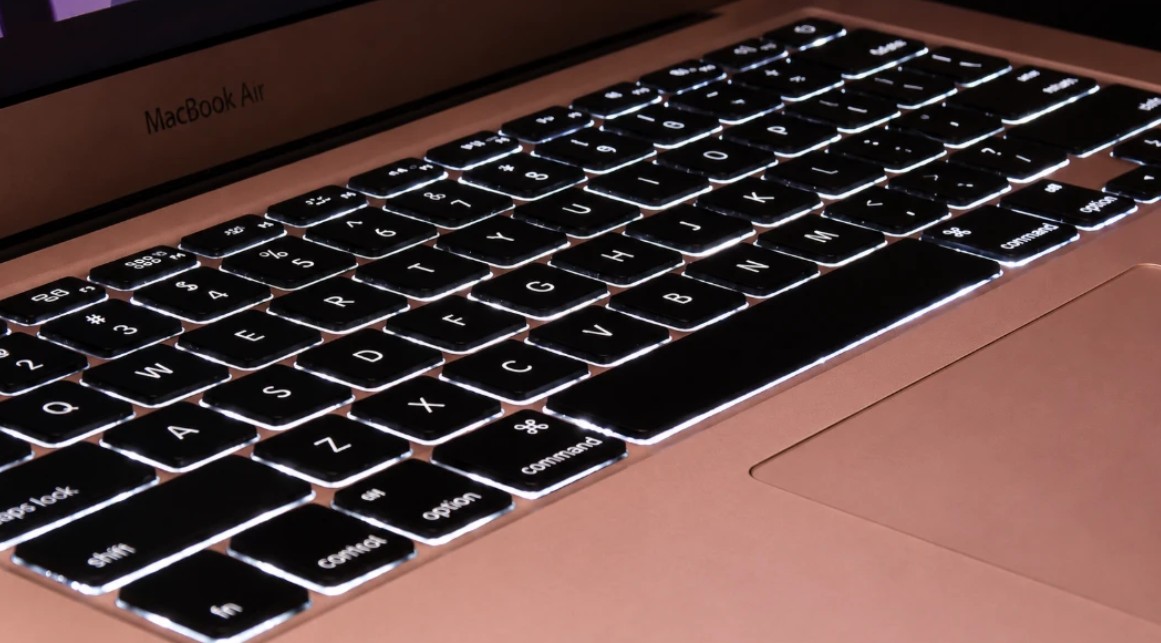
If the MacBook’s keyboard backlight isn’t working, the problem doesn’t necessarily indicate a serious fault: sometimes it’s enough to check the brightness settings in macOS or reset the System Management Controller (SMC). What you can do at home and when you might need to Replacing the keyboard on a MacBook We explain this in the article.
Main signs of a fault
The MacBook’s keyboard backlight may fail to turn on at all or may be intermittent: it may not respond to brightness adjustments, may change brightness on its own, or may fade out from time to time. The problem may affect either specific areas of the keyboard or the entire surface.
Possible causes of faults that can be rectified at home
Reason | How does it manifest itself? | What might help |
SMC controller failure | The backlight does not respond to adjustments, flickers or goes out after sleep mode. | Reset SMC settings (see below the table for more details) |
The brightness has been reduced to zero | The backlight is completely off, although the keyboard is working. | Increase the brightness using the F5/F6 keys or via the menu «System Settings» → «Keyboard» → «Keyboard Brightness», depending on the model. |
Energy-saving settings or light sensor | The backlight switches off automatically or adjusts its brightness depending on the ambient light. | Check the automatic keyboard adjustment settings in «System Settings» → «Keyboard» |
Crash following a macOS update | The backlight has stopped working or has become unreliable following a system update. | Restart your MacBook and check for any further macOS updates in «System Settings» → «General» → «Software Updates» |
Dirt on the keyboard | Some keys are dimly lit or lit unevenly. | Clean the keyboard to remove dust. At home, this can be done superficially, without taking it apart, or at a service centre as part of a routine cleaning of the components. |
How do you reset the SMC on a MacBook?
The method varies depending on the model:
MacBook with Intel processor but without the T2 chip
Switch off the laptop, press and hold Left Shift + Control + Option (Alt), as well as the power button for 10 seconds. Release the keys and switch on your MacBook.
MacBook with Intel and T2
Switch off your MacBook, hold down the power button for 10 seconds, release it, and switch the laptop back on. If that doesn’t work, perform a hard reset:
- Switch off your MacBook.
- Hold down Left Control + Left Option + Right Shift for 7 seconds. Whilst holding down these keys, also press the power button and hold down all four keys for a further 7 seconds.
- Release all the keys, wait a few seconds, and switch on the laptop
MacBook with Apple Silicon (M1 and later)
Restart your MacBook or switch the device off and on again.
Bottom line.
If the backlight has stopped working completely or in certain areas of the keyboard, first check the settings in macOS and restart your MacBook. If this doesn’t help, the problem may be caused by damage to the ribbon cable or other components due to wear and tear, a fall, a heavy knock or liquid spillage. In this case, you’ll need to have it diagnosed at a service centre.
Depending on the nature of the damage, the keyboard may need to be repaired or replaced. On some MacBook models, Apple replaces the keyboard together with the top case.